- News
- Technology News
- Tech Tips News
- 10 easy steps to turn your old smartphone into a home security camera
10 easy steps to turn your old smartphone into a home security camera
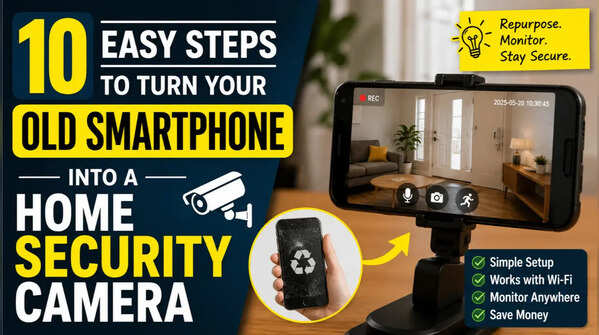
10 easy steps to turn your old smartphone into a home security camera
As smartphone technology continues to improve, many people upgrade to newer devices while their older phones remain fully functional. Instead of leaving those devices unused in a drawer, you can repurpose them as home security cameras.
With an old smartphone, a stable internet connection, and a security camera app, you can create a simple monitoring system for your home. This setup can help you keep an eye on entrances, living spaces, pets, or children without purchasing dedicated security hardware.
If you want to turn an old smartphone into a home security camera, here are the steps you need to follow.
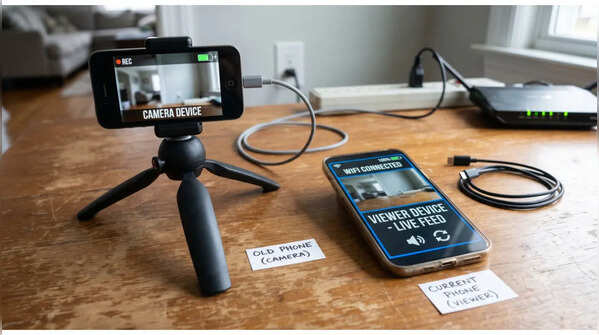
Gather all the devices that you'll need
Before getting started, make sure you have two smartphones available. Your old phone will act as the Camera device and stay in a fixed location. Your current smartphone will serve as the Viewer device, allowing you to monitor the camera feed remotely. Both devices should have internet access and sufficient battery life during setup.
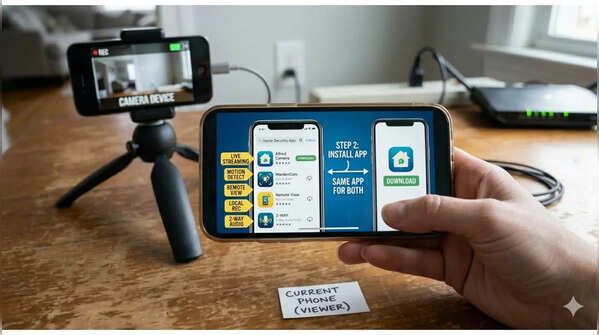
Download a security camera app
The next step is to install a security camera application on both phones. Several apps on Android and iOS can convert an old phone into a surveillance camera. Look for an app that supports features such as live streaming, motion detection, remote viewing, local recording, and two-way audio. Once selected, download and install the same app on both devices.
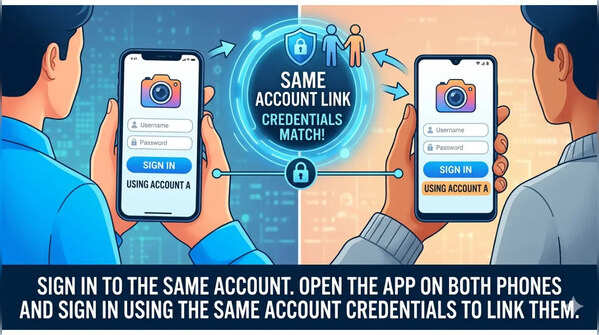
Sign in to the same account
After installing the app, open it on both phones and sign in using the same account credentials. Most security camera apps require both devices to be linked through a single account before they can communicate with each other. Make sure the login details match exactly on both devices.
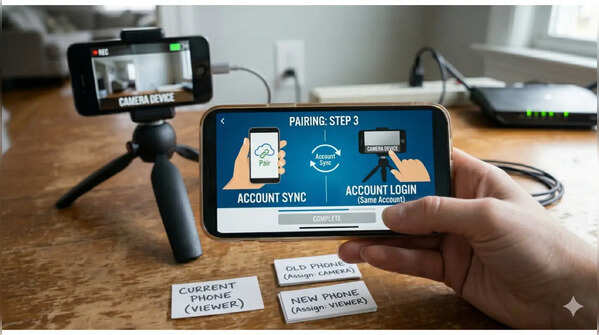
Pair the camera and viewer devices
Follow the setup instructions provided by the app to connect the two phones. During the setup process, assign your old smartphone as the Camera device and your current smartphone as the Viewer device. Different apps may use QR codes, account syncing, or manual pairing methods to complete this step.
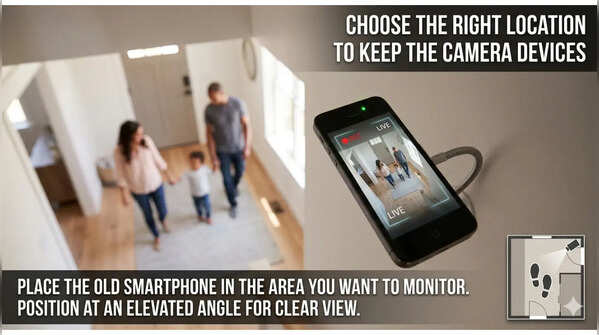
Choose the right location to keep the camera devices
Place the old smartphone in the area you want to monitor. Common locations include front doors, hallways, staircases, living rooms, and entry points. Position the device at an elevated angle to increase visibility and reduce the risk of it being knocked over. Ensure the camera lens has a clear view of the area.
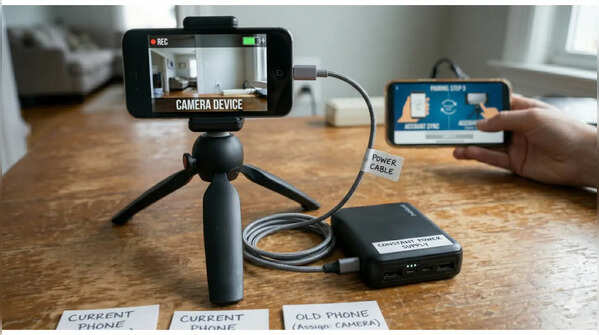
Keep the ‘camera’ phone connected to power
A security camera needs to remain active for long periods, making a constant power source essential. Keep the old phone plugged into a charger whenever possible. If a wall outlet is not nearby, you can use a power bank as an alternative power source. This helps prevent interruptions caused by battery drain.
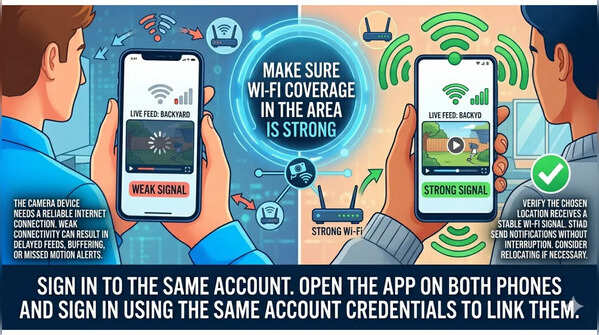
Make sure Wi-Fi coverage in the area is strong
The Camera device needs a reliable internet connection to stream footage and send notifications. Before finalizing the setup, verify that the chosen location receives a stable Wi-Fi signal. Weak connectivity can result in delayed feeds, buffering, or missed motion alerts. Consider relocating the phone or improving Wi-Fi coverage if necessary.
Test the live Camera feed
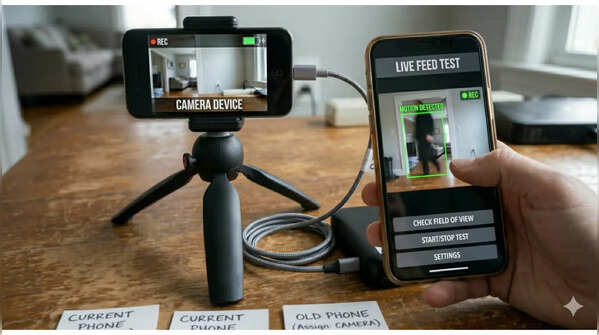
Once everything is connected, access the live feed from your Viewer device. Check whether the video stream is working properly and confirm that the camera captures the desired area. Walk through the monitored space to verify that the system responds correctly. This step helps identify any issues before regular use.
Adjust motion detection and alerts
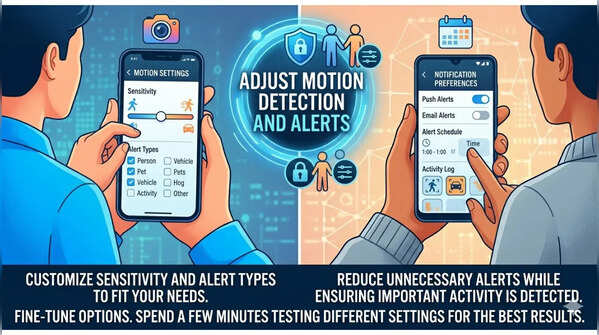
Most security camera apps allow users to customize monitoring settings. You can adjust motion detection sensitivity, recording preferences, and notification settings based on your needs. Fine-tuning these options can help reduce unnecessary alerts while ensuring important activity is detected. Spend a few minutes testing different settings for the best results.
Add more phones for wider coverage
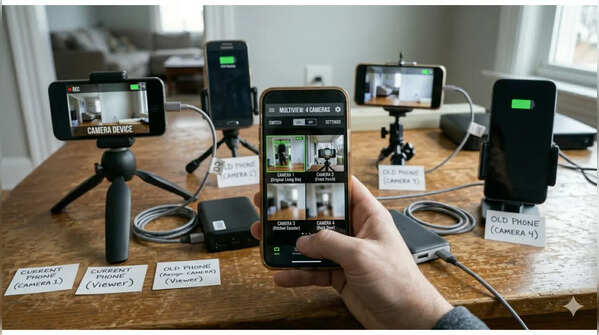
If you have multiple unused smartphones, you can expand your setup by turning each one into a separate camera. Connect all devices to the same account and Wi-Fi network, then place them in different parts of your home. This allows you to monitor multiple rooms and entry points from a single Viewer device.
Featured In Technology